Admin Audit Logs
Admin audit logs capture every change made to objects in Harness FME by users with enhanced permissions.
These logs provide a record of who made a change, what was changed, and when, helping teams track configuration updates, ensure accountability, and support governance.
- Harness FME (Recommended)
- Legacy Split
The following objects in Harness FME are tracked in admin audit logs:
- SDK API keys
- Environments
- Traffic types
- Dimensions
- Security settings
- General settings
- Monitor window and statistics
Supported Integrations
Harness FME integrations tracked in admin audit logs allow you to manage changes to your feature flags, environments, and experiment configurations.










Over time, these audit log entries will move to the Harness platform’s Audit Trails feature, but for now they are only accessible in the FME UI or by FME’s Audit Log webhook.
The following objects in legacy Split are tracked in admin audit logs:
- SDK API keys
- Admin API keys
- Environments
- Traffic types
- Dimensions
- Users and their group memberships
- Groups
- Security settings
- General settings
- Monitor window and statistics
Supported Integrations
Harness integrations allow you to access and manage your feature flags and experiments directly within the Harness modules your team already uses.
Viewing changes
- Harness FME (Recommended)
- Legacy Split
Access admin audit logs by navigating to FME Settings, select Security, and click the Admin audit logs tab. You can see a table of all changes that are made by users against the objects listed above.
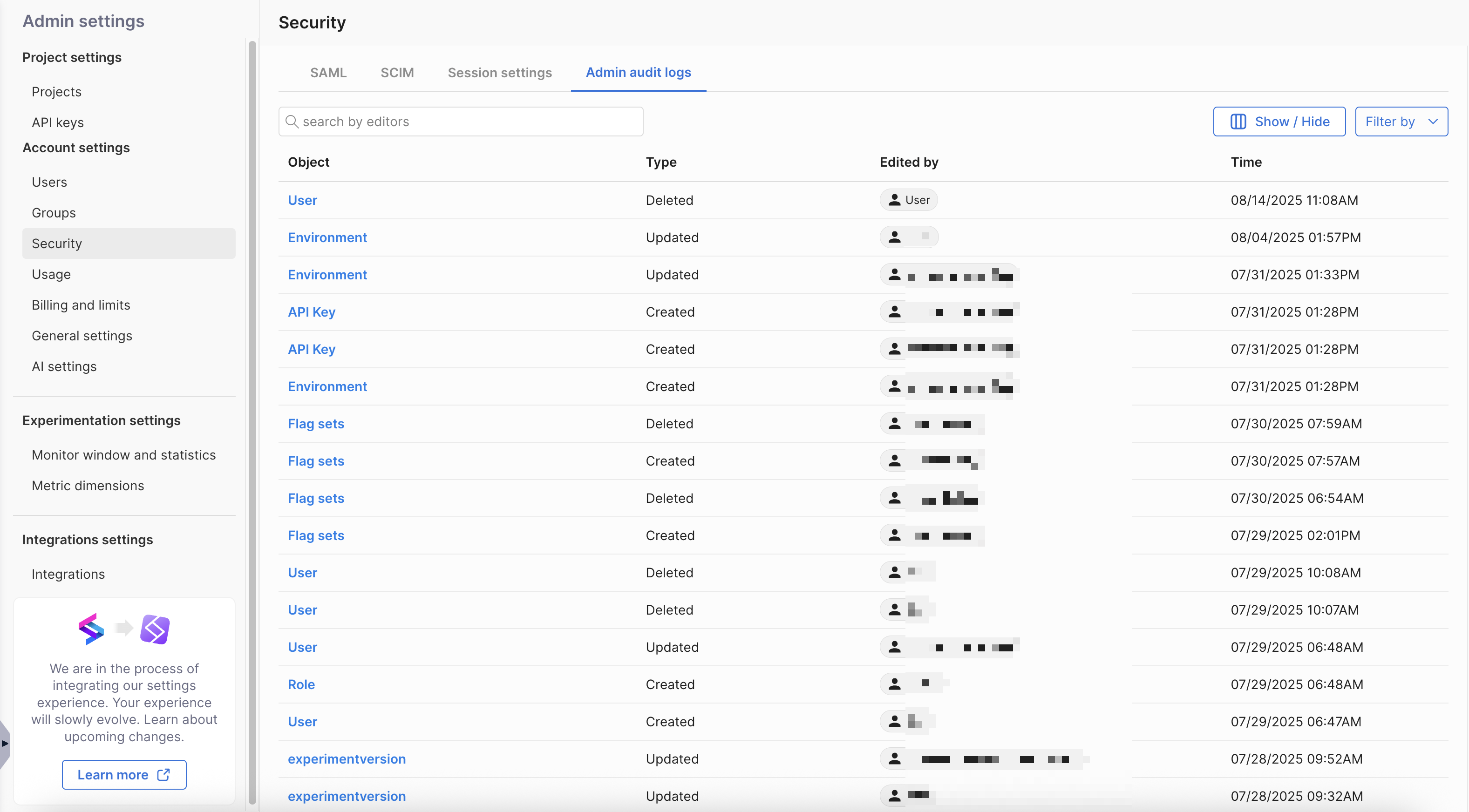
When hovering over the row for an admin audit log, click on the object name for that change to see more information about each update, including a diff view of what elements of the object were edited.
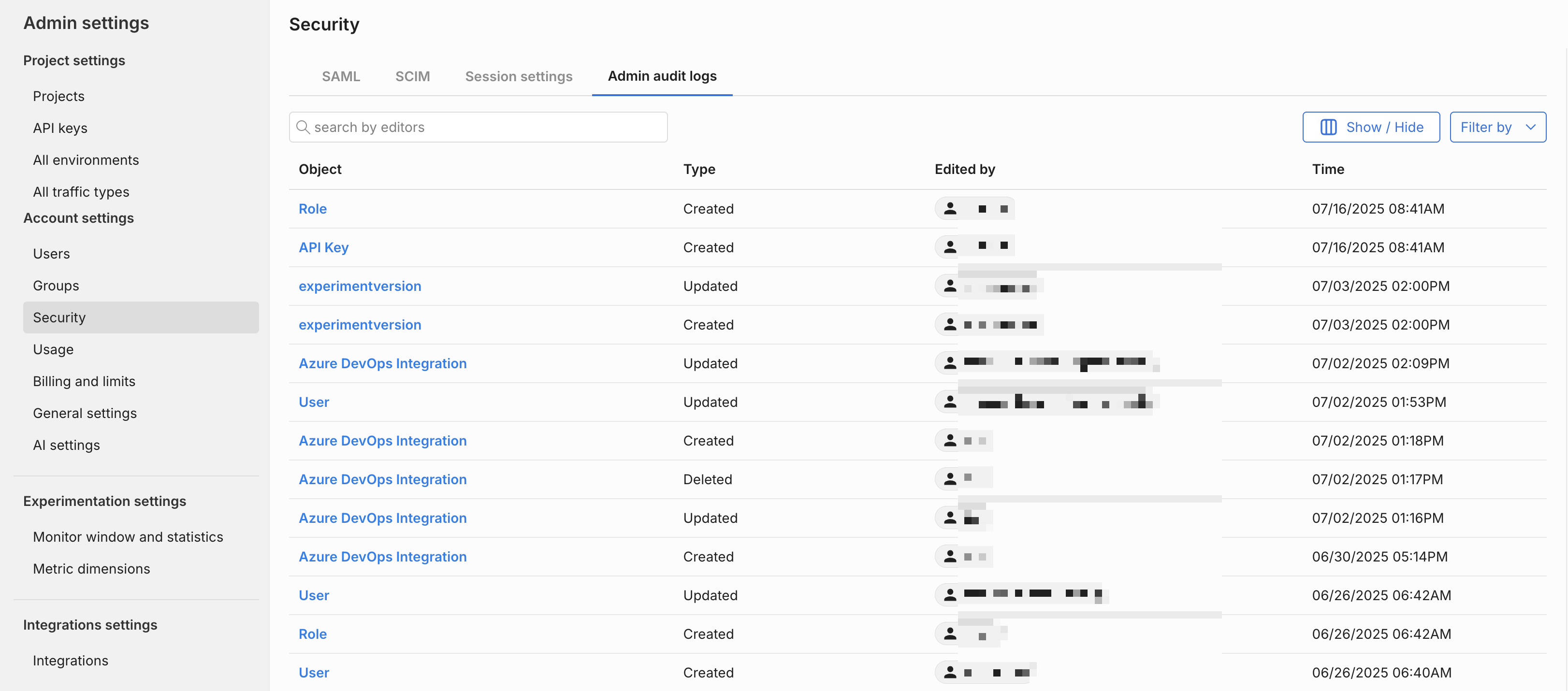
Access Admin audit logs by navigating to Admin settings, select Security, and click the Admin audit logs tab. Admins see a table of all changes that are made by Admins against the objects listed above.
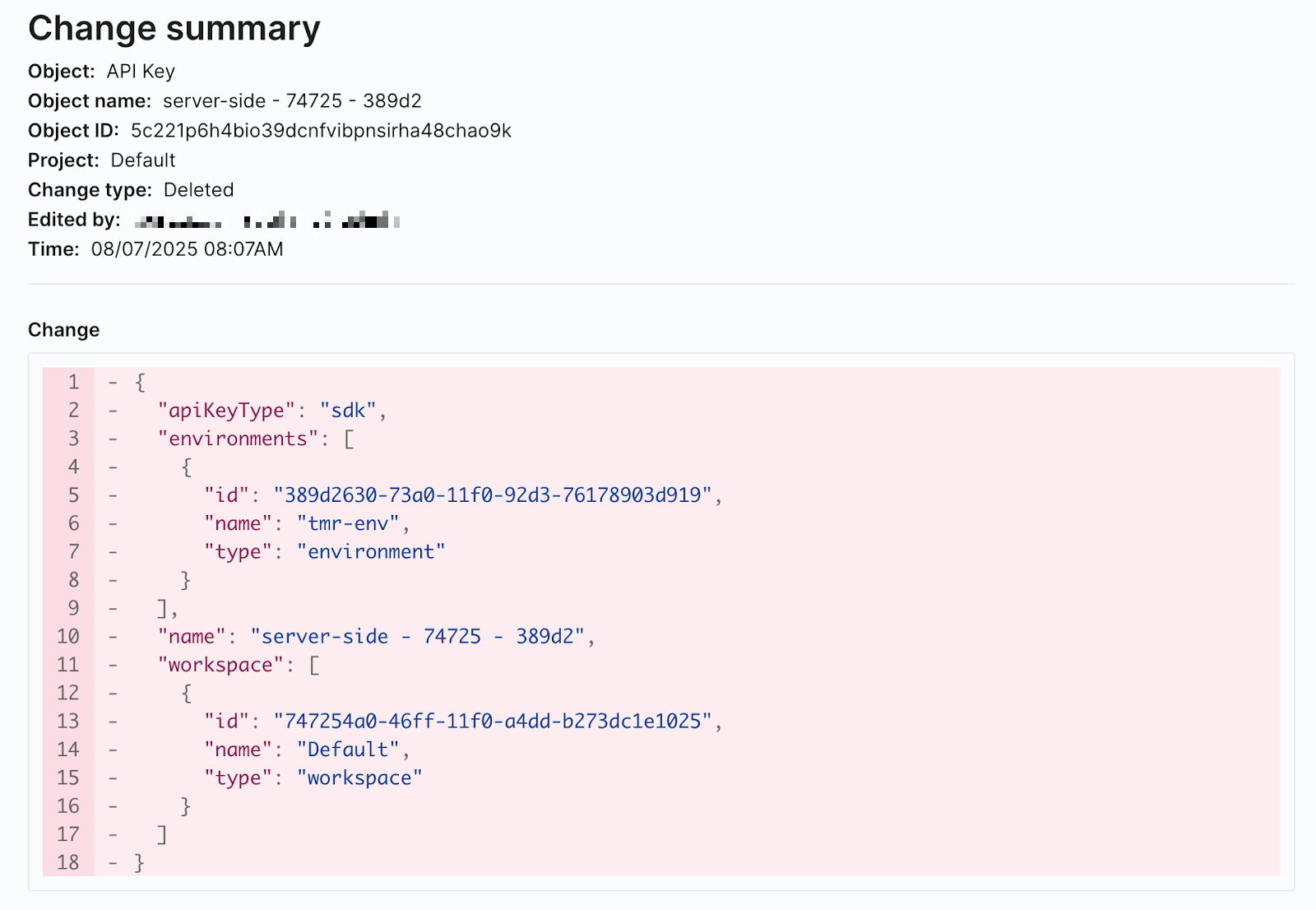
When hovering over the row for an audit log, click on the object name for that change to see more information about each update, including a diff view of what elements of the object were edited.
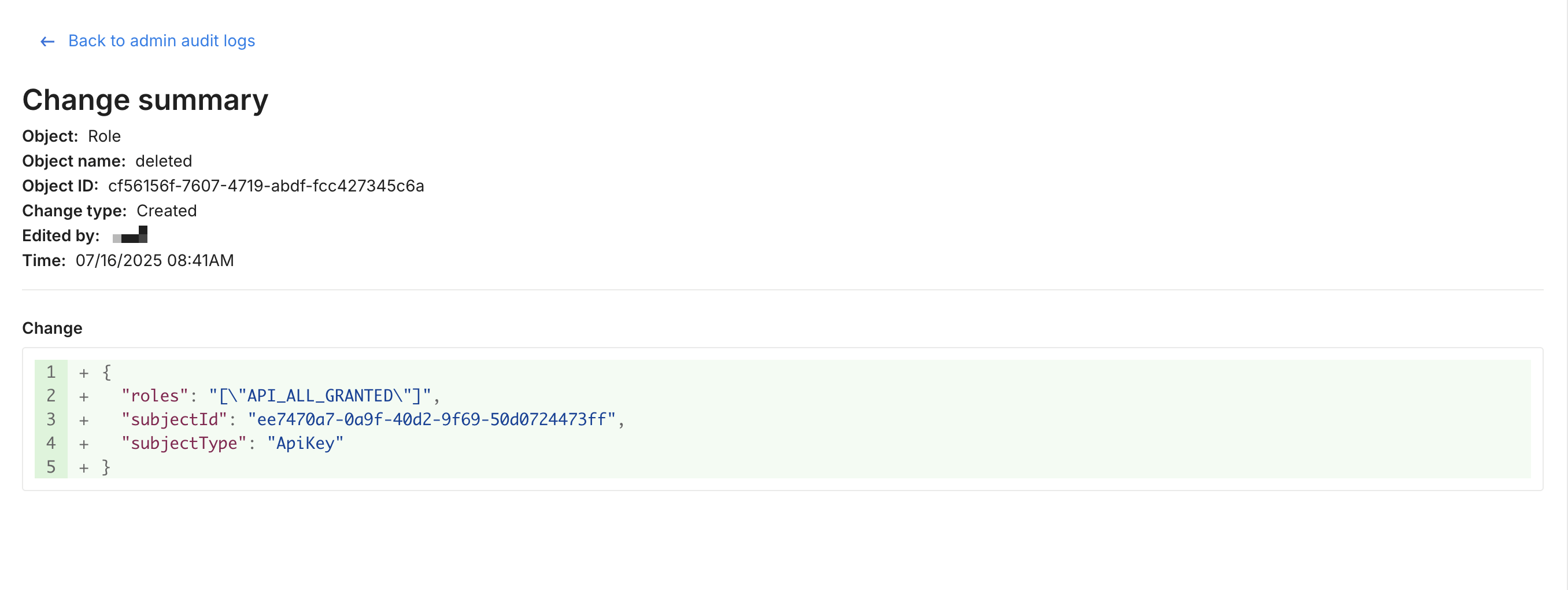
Monitor this data using the user interface to more easily audit every modification made to these administrative settings over time, or to troubleshoot any issues that occur with your integrations. You can also pull out this data using the outgoing webhook for analysis within other tools.